How to read a CommentPress document

¶ 1 Leave a comment on paragraph 1 0 The following relates to the default CommentPress theme that is bundled with the plugin. The theme used on this website will be included with the plugin, but is still in development. Please be patient and we’ll update this page when the time comes. Thanks.
¶ 2 Leave a comment on paragraph 2 0 If you’re unfamiliar with the CommentPress interface, the following should help you navigate your way around a CommentPress document. (Please note: the screenshots below correspond to the design of Version 3.2, but the icons and general placement have not changed much in the default theme, so we hope these are still helpful)
¶ 3
Leave a comment on paragraph 3 0
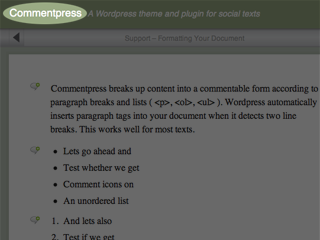
Document Title
¶ 4 Leave a comment on paragraph 4 9 As with most WordPress sites, the document title is also a link to the document’s home page. The main text column and the comments column can be made to occupy proportionally different widths of the page by dragging the right–hand border of the text column. If you’d like less screen clutter, you can close the page header by clicking on the ‘up–and–down’ arrow icon at the far right of the navigation bar (click the icon again to reopen).
¶ 5
Leave a comment on paragraph 5 0
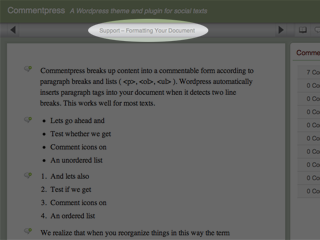
Page Title
¶ 6 Leave a comment on paragraph 6 0 Each page will display its title here. If the page is contained within a chapter or section, this context will also be shown here. Navigate your way through pages in a linear way using the next and previous page buttons:
¶ 7
Leave a comment on paragraph 7 0
Next Page Button
¶ 8
Leave a comment on paragraph 8 0
Previous Page Button
¶ 9 Leave a comment on paragraph 9 2 If at any time you get lost, or want to jump to a specific page, the Table of Contents is always available to you by clicking the open book icon shown below. If you have Javascript enabled, the Table of Contents will appear in the right hand column. If Javascript is not enabled, this will take you to the document’s home page where you will find the Table of Contents in the right–hand column.
¶ 10
Leave a comment on paragraph 10 0
Table of Contents Button
¶ 11 Leave a comment on paragraph 11 3 CommentPress presents two innovative ways of reading comments on the text. By clicking on the ‘double speech bubble’ icon in the navigation bar, you can read comments–by–page; in the list of pages, ordered by number of comments. By clicking on the people icon in the navigation bar, you can read comments–by–author, with the same functionality as for comments–by–page.
¶ 12
Leave a comment on paragraph 12 0
General Comments Button
¶ 13 Leave a comment on paragraph 13 0 Perhaps your comment does not really apply to a particular page or paragraph? The General Comments page is there so that you can leave comments which are global in scope or reference.
¶ 14
Leave a comment on paragraph 14 0
All Comments Button
¶ 15 Leave a comment on paragraph 15 0 As you can guess, the All Comments page shows a list of pages that have comments on them, ranked by number of comments. With Javascript enabled, you’ll have to click on the title of the page to view the comments. Each comment has a link so that you can view it in its original page context: click on “Comment” in each comment’s header.
¶ 16
Leave a comment on paragraph 16 0
Comments-by-Commenter Button
¶ 17 Leave a comment on paragraph 17 0 The Comments–by–Commenter page is similar to the All Comments page, but (of course) comments are listed by comment author.
¶ 18
Leave a comment on paragraph 18 0
Blog Button
¶ 19 Leave a comment on paragraph 19 0 The CommentPress document’s blog is accessed by clicking the ‘thumbtack’ button shown above. In general, CommentPress documents are likely to be completed works — the blog allows the author a continuing voice without disturbing the layout of the document itself. Where the document is still in progress, the blog allows content to be published that does not sit comfortably within the document itself — announcements, for example.
¶ 20 Leave a comment on paragraph 20 0 If you are on a page (or blog post) which allows paragraph–level commenting, then you will see icons like those below down the left–hand side of the page:
¶ 21
Leave a comment on paragraph 21 0
Paragraph Icons
¶ 22 Leave a comment on paragraph 22 0 Clicking one of these icons (when Javascript is enabled) will highlight the relevant paragraph (or block) open the corresponding comments section in the right–hand column and scroll it to the comment form. To leave a comment on an entire page, click the link to “Comments on the whole page”. Paragraph icons are also links which can be used as permalinks to a paragraph. Here’s an example link to a video on another page on this site.
¶ 23 Leave a comment on paragraph 23 0 If you’re concentrating on reading comments on paragraphs, this is more easily done by clicking the headers in the “Comments” column; each section will then open at the first comment. If you’re reading comments on an iPad, use two–finger scrolling in this column. CommentPress features live posting and updating of comments, so you don’t have to refresh the page to see what’s being said by others.
¶ 24 Leave a comment on paragraph 24 0 Are you having trouble understanding anything else about CommentPress? Leave a comment on this page and we’ll try and help you out.


 Nick
Nick
 Al Jones


can i copy this page and put it into my own document as a guide for readers?
So, okay, my site isn’t a WP site, but I’m putting one together that is.
Comment: most of your link in the Examples are dead … probably should go back and try those again.
This looked interesting since my vet (the one for whom I’m putting this site together) wants to be able to post unusual procedures that they’ve performed in the clinic. But not allowing the use of an existing template leave me cold (as a developer) and the entire concept of commenting by paragraph is definitely overkill.
Feel free to educate me if you will //al
Thanks for the feedback on the links, Al. You’re right that CommentPress certainly isn’t for everybody – we tried to make paragraph level commenting applicable to other themes, but there were always too many unknowns to do so reliably. Hence the custom parent themes.